Easing.
Apply easing curves to selected keyframes.
What it does
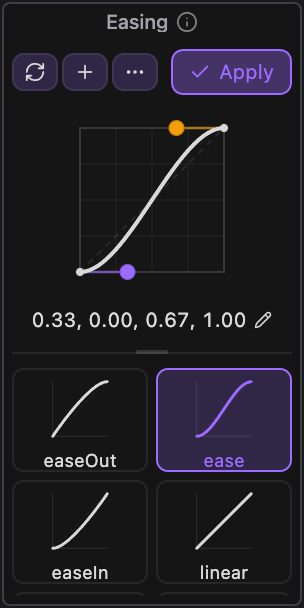
Click a preset to ease the selected keyframes. Make the widget bigger and an editable curve graph appears: read the ease off your keyframes, drag the handles or type the values, then apply it or save it as your own preset.
Controls
- Click: Apply easing to selected keyframes
Details
- Category: Keyframe Tools
- Kind: Widget
- Also searched as: easing, ease, keyframe, bezier, curve, animation, graph
Guide
What it eases
Select keyframes in the timeline and click a preset. Altar changes the temporal ease (speed and influence) of those keyframes, so the curve shows up in the Graph Editor exactly as drawn. If you select a property but no keyframes, every keyframe on it is eased. If you select only a layer, every keyframed property on it is eased.
Small and large
At its smallest size the Tool is a row of presets, and a click applies the preset straight away. Make it bigger to see the whole library.
Make the Tool larger on the canvas and an editable curve graph appears. In that layout, clicking a preset loads it into the graph, and Apply writes it to your keyframes.
Edit a curve
- Read (the refresh button) loads the ease from the selected keyframes. If the selection has several different eases, it shows the first and tells you how many it found.
- Drag the two handles to shape the curve. The graph goes above 1 and below 0 for overshoot and anticipation.
- Click the values under the graph to type the four numbers yourself (the same order as a CSS cubic-bezier).
- + saves the current curve as your own preset.
Manage presets
Open ⋯ (or right-click the presets) and choose Edit presets to delete your own presets or hide built-in ones. Restore default presets brings hidden ones back. Drag the bar under the graph to trade graph space for preset space.