Text Point.
Animate text on and off by character, word or line.
What it does
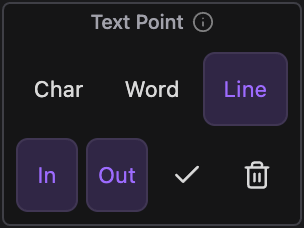
Adds an In and Out animation to the selected text layers, by character, word or line. Pick the grouping, switch In and Out on or off and apply. Then fine-tune timing, position, scale, rotation and easing from the Text Point effect in the Effect Controls.
Controls
- Click: Apply Text Point to the selection
Details
- Category: Text Tools
- Kind: Widget
- Also searched as: text, animate, animator, in, out, character, word, line, reveal, kinetic
Guide
Apply
- Select one or more text layers. With nothing selected, Altar creates a new four-second text layer at the playhead.
- Pick the grouping: Char, Word or Line.
- Switch In and Out on or off. A side that is off gets a duration of zero.
- Press the check button.
Applying again to a layer that already has Text Point rebuilds it with the new settings and resets the effect values. The trash button removes the effect and both animators from the selected layers.
Timing follows the layer
The In animation starts at the layer’s in point and the Out animation ends at its out point. To move or lengthen the animation, trim the layer instead of looking for keyframes; there are none to move.
Fine-tune
Everything else lives on the Text Point effect in the Effect Controls, with separate In and Out settings:
- In animation (frames) and Out animation (frames)
- Position X/Y, Scale X/Y, Rotation and Opacity, the values each character, word or line animates from or to
- Start Ease and End Ease
- Reverse order, to run the animation from the last character, word or line instead of the first
The default grouping and whether In and Out start switched on can be changed in the Tool’s settings.