Anchor + Align + Distribute.
Reposition anchor points, align, and distribute layers.
What it does
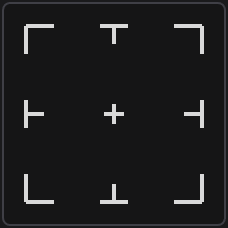
Click a point on the grid to move the anchor point of the selected layers to that corner, edge or center, without moving the layers. Hold Shift to align the layers to the comp instead, or Alt to space three or more layers evenly.
Controls
- Click: Reposition anchor point
- Shift: Align layers in composition
- Alt: Distribute layers
Details
- Category: Layer Tools
- Kind: Widget
- Also searched as: anchor, align, distribute, center, position
Guide
The widget has three modes. Select your layers first, then pick one.
Move the anchor point
Click one of the nine points on the grid. Each selected layer’s anchor point moves to that corner, edge or center of the layer, and its position is adjusted so the layer stays exactly where it was.
Align to the comp
Hold Shift and the grid turns into an alignment map of the comp.
- The four corners and the center move each layer to that corner or the center of the comp.
- The lines along each edge align to that edge only, so the other axis is left alone. The inner lines center the layers on one axis.
Every selected layer is aligned on its own, using its visible bounds (scale, rotation and parenting included). If Position is keyframed, Altar sets a keyframe at the playhead rather than shifting the whole animation.
Distribute
Hold Alt and the widget splits along its diagonal. Click the top-right half to space layers evenly left to right, or the bottom-left half for top to bottom. You need at least three layers: the two outermost stay put and the ones in between are spread evenly by their centers.
Everything is a single undo step.