Select Matching.
Select every property matching the selected one.
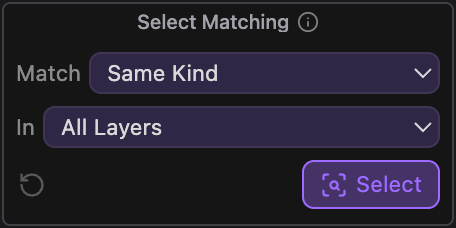
What it does
Select a property in the timeline and press Select to add its matches to the selection. Same Kind finds that type of property on every layer, Same Property only the one at the same place with the same name, and Same Value only the ones set to the same value. Search all layers or just the selected ones, then press S twice to reveal the matches in the timeline.
Controls
- Click: Select matching properties
Details
- Category: Selection Tools
- Kind: Widget
- Also searched as: selection, property, properties, match, matching, value, timeline
Guide
Pick what to match
Select one property in the timeline, or up to five. Property groups such as Transform or Contents can’t be matched, so select the property itself, for example Position, Opacity or an effect’s slider.
Match
- Same Kind finds every property of the same type, wherever it sits. Select one Slider Control’s slider and you get the slider of every Slider Control, whatever the effect is called.
- Same Property finds the same property by its name and place in the layer. Select the slider of an effect called “Speed” and you only get the sliders of effects called “Speed”.
- Same Value finds properties of the same type that are set to exactly the same value, read at the playhead.
In
All Layers searches every layer in the comp. Selected Layers only searches the layers you have selected. Locked layers are skipped either way.
Reveal the matches
The matches are added to the properties you already had selected. Press S twice in the timeline to twirl open every selected property, so you can see and edit them all at once.