Add Stop Motion.
Give animation a stepped, handmade feel.
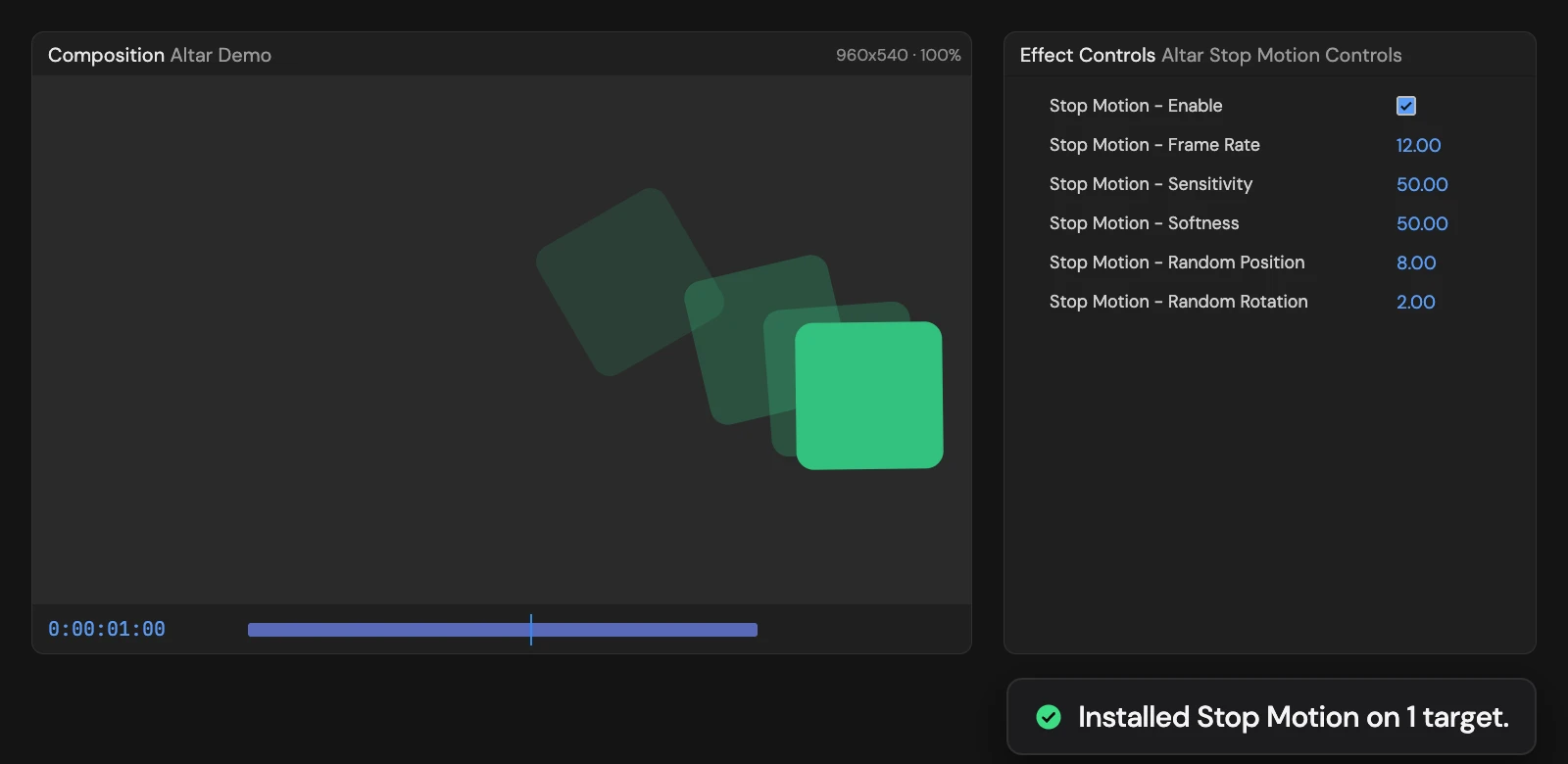
What it does
Steps the Position and Rotation of the selected layers at 12 frames a second and adds a small jitter to fast moves; raise Sensitivity to make slower moves jitter too. One shared Stop Motion Controls layer, a hidden guide layer at the top of the comp, sets the frame rate, sensitivity, softness and jitter for every layer it drives.
Controls
- Click: Install Stop Motion rig
Details
- Category: Animation Tools
- Kind: Script
- Also searched as: stop motion, posterize, jitter, camera, animation
Guide
Use it
Animate your layers first, then select them and click Add Stop Motion. Their Position and Rotation (Z Rotation on 3D layers) now step at 12 frames a second, like hand-placed stop motion. Fast moves also pick up a small random jitter; slow moves and layers at rest only step.
The first time, the Tool adds an Altar Stop Motion Controls layer at the top of the comp. It is a hidden guide layer, so it never renders. Every layer you add Stop Motion to in that comp shares its controls:
- Frame Rate (12) is how many times a second the motion updates.
- Random Position (8) and Random Rotation (2) set the size of the jitter. 0 keeps the stepping without jitter.
- Sensitivity and Softness (50 each) set how fast a layer must move before it jitters. At the defaults the jitter starts at about 25 pixels per comp frame and reaches full size at about 51; Rotation uses the same numbers in degrees. Raise Sensitivity to make slower moves jitter too (at 100 almost any move does). Higher Softness starts the jitter later and brings it in more abruptly.
- Enable turns the effect off for every layer that uses it.
Good to know
- It works with Position as one property or split into X, Y and Z, and on 3D layers.
- The Tool replaces any expression already on Position and Rotation. Your keyframes stay underneath.
- Adding the controller selects it; select your layers again before adding more.
- One Undo removes everything that click added.