Crop Comp to Content.
Crop the comp canvas to its content.
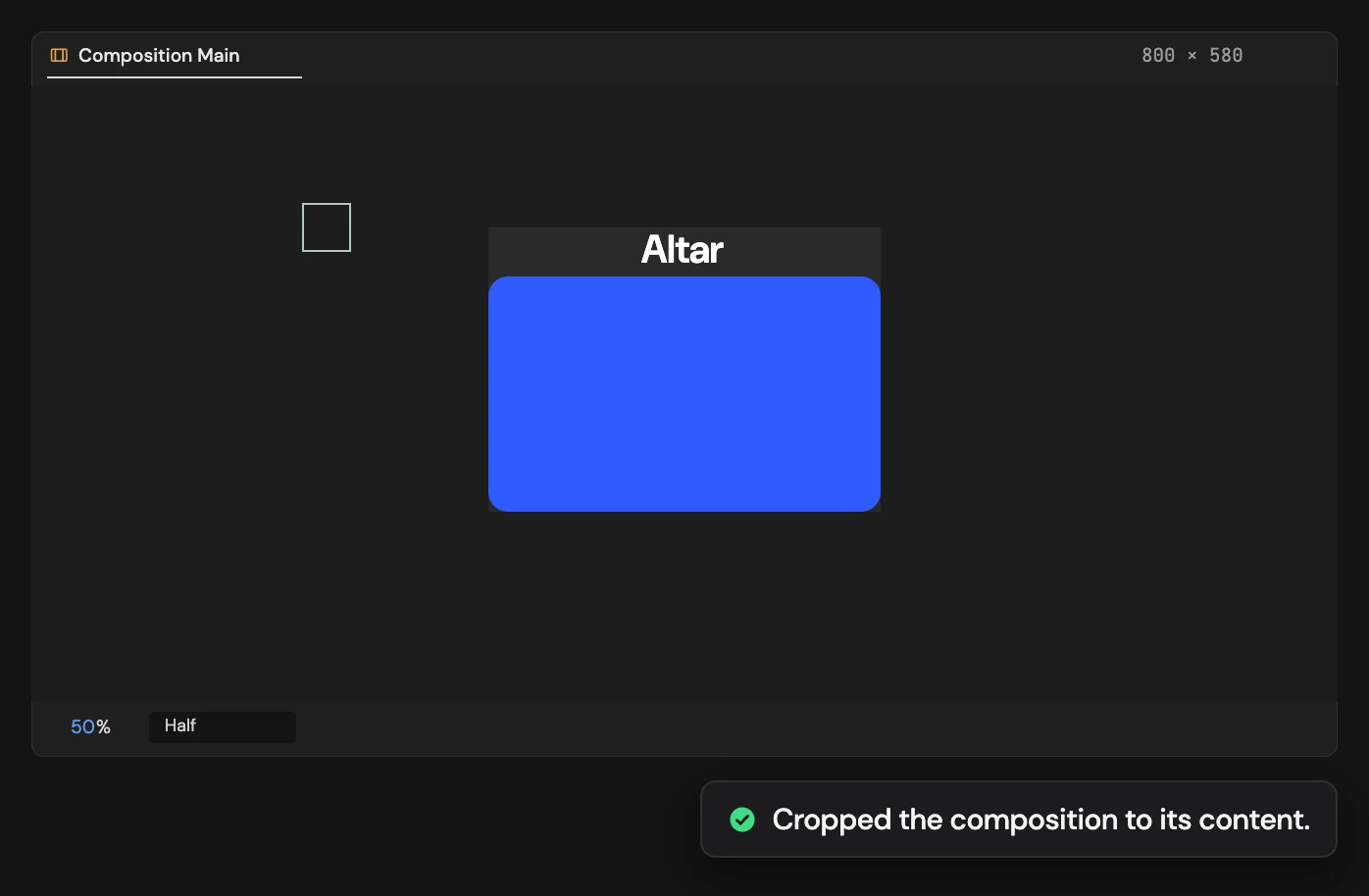
What it does
Resizes the active composition’s canvas to the bounding box of its layers on the current frame, keeping every layer visually in place. Content outside the frame makes the canvas bigger. Cameras, lights, nulls, guides, adjustment and hidden layers are ignored, and comps with 3D layers aren’t supported.
Controls
- Click: Crop the canvas to content
Details
- Category: Composition Tools
- Kind: Script
- Also searched as: composition, comp, crop, canvas, resize, bounds, trim
Guide
Crop
- Open the composition and move the playhead to the frame you want to measure.
- Click Crop Comp to Content.
The canvas becomes the bounding box of the layers on that frame, with no padding, and every layer stays exactly where it was on screen. The selection makes no difference: every layer in the comp is measured. Layers parked outside the frame count too, so the canvas can grow as well as shrink.
What counts
Nulls, guides, adjustment layers, hidden layers, cameras and lights are left out of the measurement. If the comp has any 3D layer, even a hidden one, the crop stops with a message instead. It measures layer bounds, not visible pixels, so effects that spill beyond a layer and animation on other frames are not included.
Each click is a single undo step. For padding, or to keep some edges where they are, use Crop Comp with Padding.