Isolate Layers in Timeline.
Isolate selected layers in the timeline.
What it does
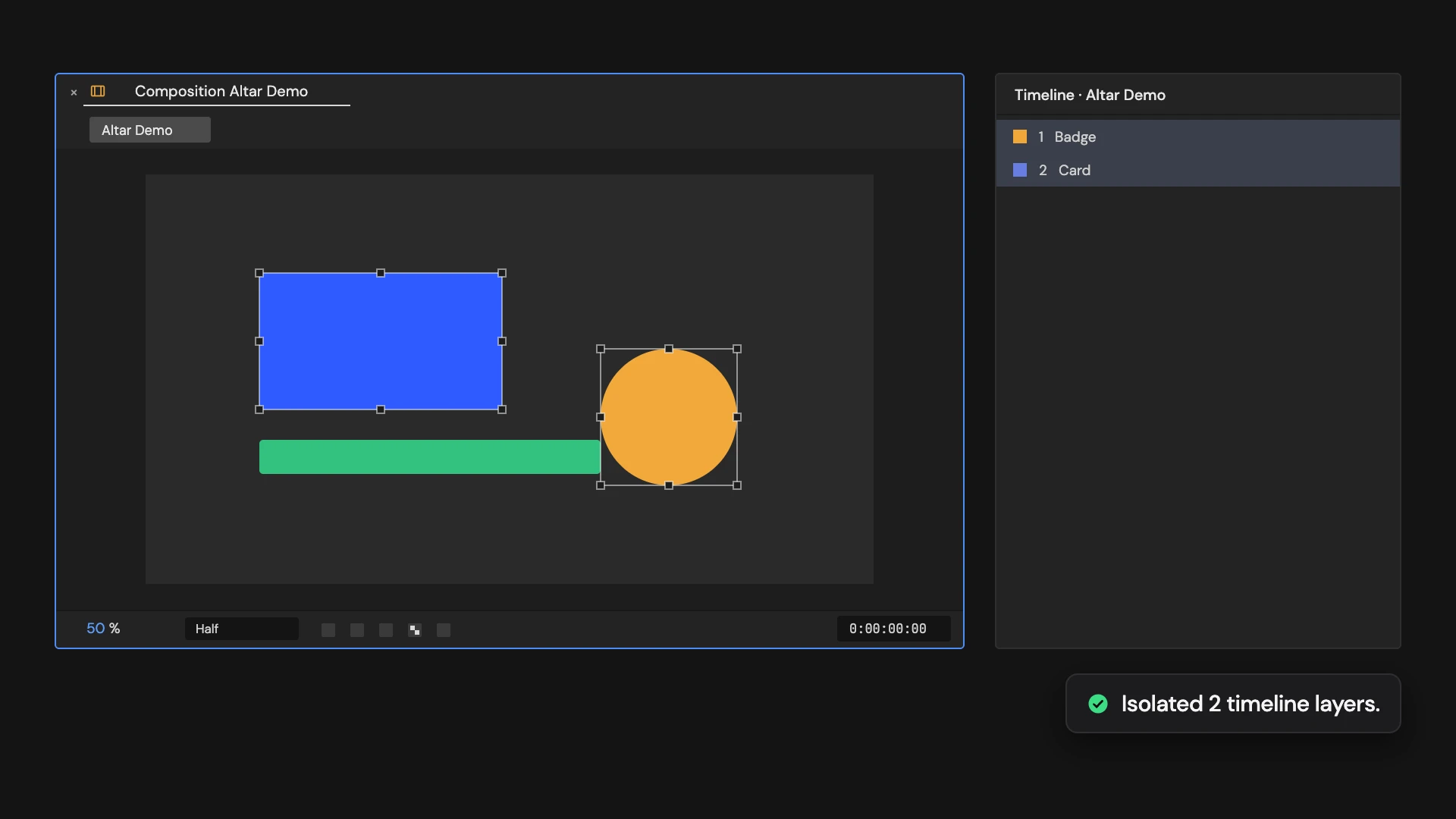
Makes every unselected layer shy and locked, then hides shy layers, so only your selection is left in the Timeline. Click again to show and unlock every layer, including layers you had locked yourself. Hold Ctrl/Cmd to keep every layer that shares a selected layer’s label color.
Controls
- Click: Isolate selected layers
- Ctrl/Cmd: Isolate matching label colors
Details
- Category: View Tools
- Kind: Script
- Also searched as: view, timeline, solo, isolate, shy, lock, layers
Guide
Isolate the layers
- Select the layers you want to work on.
- Click Isolate Layers in Timeline.
Every other layer is made shy and locked, and Hide Shy Layers is turned on. The Timeline shows just your selection, and the hidden layers can’t be changed by accident. The viewer still shows everything.
Hold Ctrl/Cmd as you click to keep every layer that shares a label color with the layers you selected.
Go back
Click again while Hide Shy Layers is on. Every layer is shown and unlocked and Hide Shy Layers is turned off. You don’t need a selection for this.
Good to know
- Going back unlocks every layer, including layers you had locked yourself. To get your own locks back exactly, use Edit > Undo instead.
- If you turned Hide Shy Layers on yourself, the next click goes back instead of isolating.