Separate Shapes into Layers.
Split a shape layer's groups into separate layers.
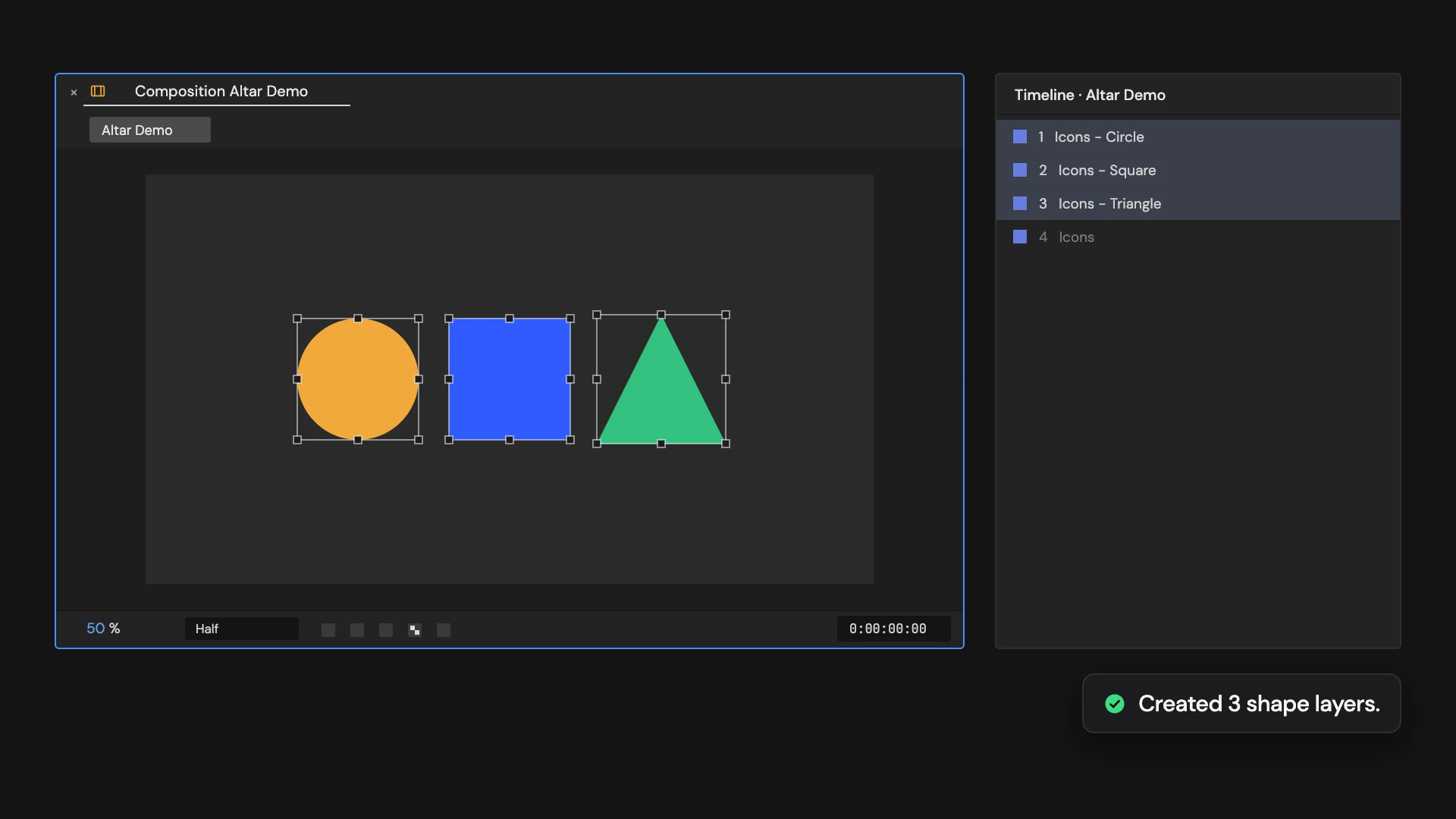
What it does
Makes a copy of each selected shape layer for every top-level group in it, keeping only that group, and names the copy after the layer and the group. The copies stack above the source in the original order, and the source is turned off; hold Ctrl/Cmd to delete it instead. Select top-level groups first to split out only those.
Controls
- Click: Separate and disable sources
- Ctrl/Cmd: Separate and delete sources
Details
- Category: Shape Tools
- Kind: Script
- Also searched as: shape, separate, split, layers, groups
Guide
Separate
Select one or more shape layers and click Separate Shapes into Layers. Every top-level group in a layer’s Contents becomes its own layer: a copy of the layer that keeps only that group, named after the layer and the group, like Icons - Circle. Because each one is a full copy, it keeps the layer’s transform, animation, effects, parent and timing, and lands exactly where the group was.
The new layers stack above the source in the same order as the groups, so what you see does not change. They end up selected.
To split out only some groups, twirl open Contents and select those top-level groups before you click.
The source layer
The source layer is turned off and deselected. Hold Ctrl/Cmd as you click to delete it instead. When you split out only some groups, the whole source is still turned off, including the groups you left in it; turn it back on if you need them.
Good to know
A fill or stroke sitting loose at the top of Contents, outside any group, is not kept in the new layers. If something fails part way, the new layers are removed and the source is left as it was. One Undo restores everything.