Add Auto Fade.
Fade layers in and out at their in and out points.
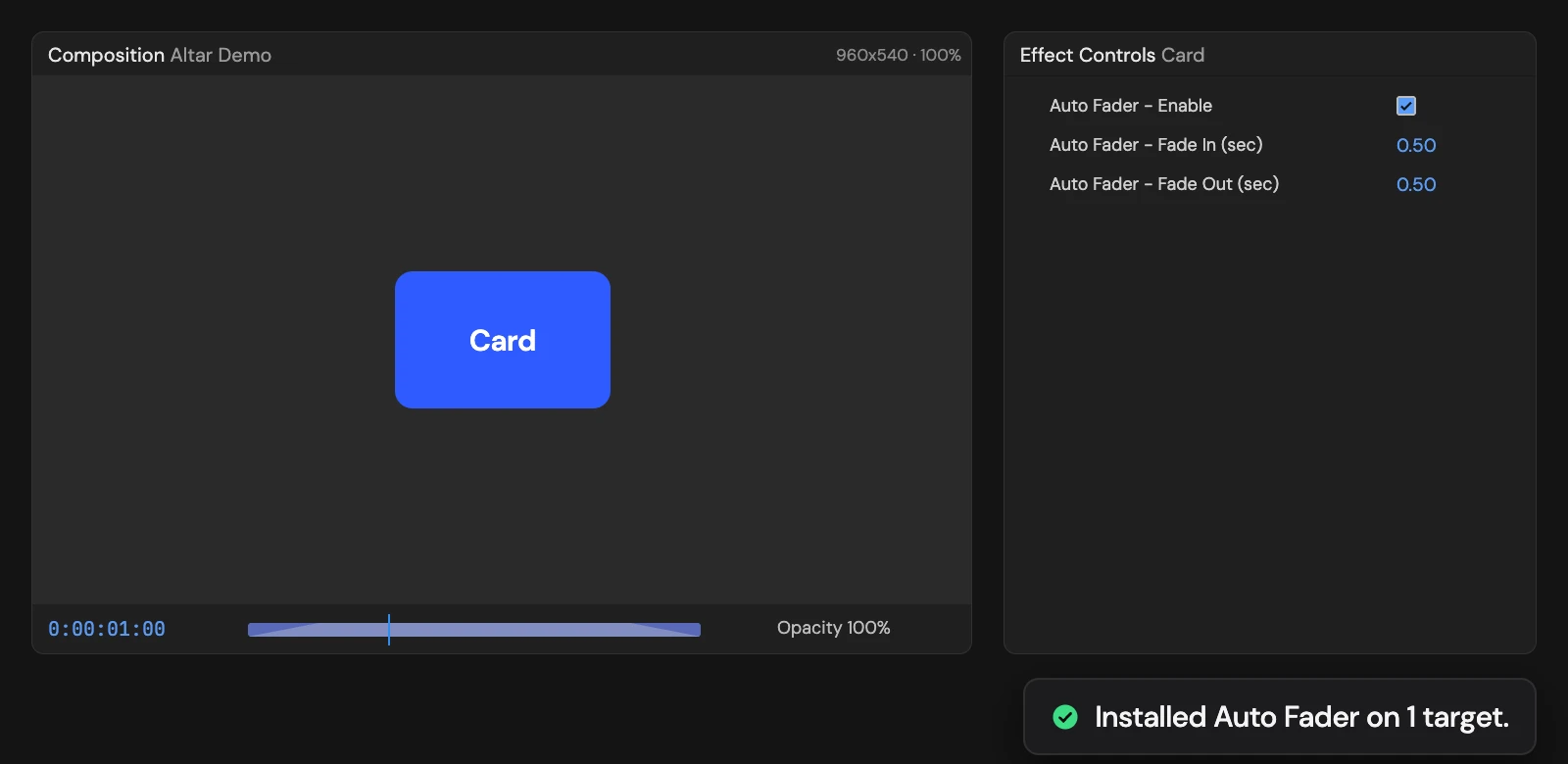
What it does
Fades each selected layer in from its in-point and out to its out-point, half a second each by default. Fade In and Fade Out in Effect Controls set the lengths, and Enable turns the fade off. Layers with audio fade their sound from -48 dB to 0 dB and back, replacing their own Audio Levels.
Controls
- Click: Install Auto Fader rig
Details
- Category: Animation Tools
- Kind: Script
- Also searched as: fade, opacity, audio, rig, animation
Guide
Use it
Select one or more layers and click Add Auto Fade. Each layer fades in from its in-point and out to its out-point, so trimming or sliding the layer moves the fades with it.
Three controls appear in Effect Controls, named Auto Fader - …:
- Fade In (sec) and Fade Out (sec) set the fade lengths, 0.5 seconds each by default. Zero turns that fade off.
- Enable switches the whole fade off and returns the layer to its own Opacity.
The fade scales the layer’s own Opacity, so a layer at 60% fades between 0 and 60%. Layers with audio also fade their sound from -48 dB to 0 dB and back. The audio fade replaces the layer’s own Audio Levels rather than scaling them, so a layer you had turned down plays at 0 dB between the fades.
Good to know
- The Tool replaces any expression already on Opacity (and on Audio Levels for layers with sound).
- Adding it again gives the layer a second set of controls, Auto Fader 2, and the fade follows the newest set. Delete the old controls if you no longer need them.
- One Undo removes the fade and the controls.