Save something for reuse.
Save a comp, with its footage, or a single file into your Vault so you can reuse it in any project.
Save a finished comp once and add it to the next project without rebuilding it. The saved asset carries its own footage, so it does not depend on the folder it was built in.
Before you start
- Save your After Effects project. Altar needs the project file to package the comp. If it has unsaved changes, Altar saves it in place first. Your open project is not changed otherwise.
- Check the comp’s footage. Missing files, nested projects and image sequences stop the save. See Storage and packaging limits.
- Park the playhead on the frame you want as the thumbnail.
Save a comp
- Open Save
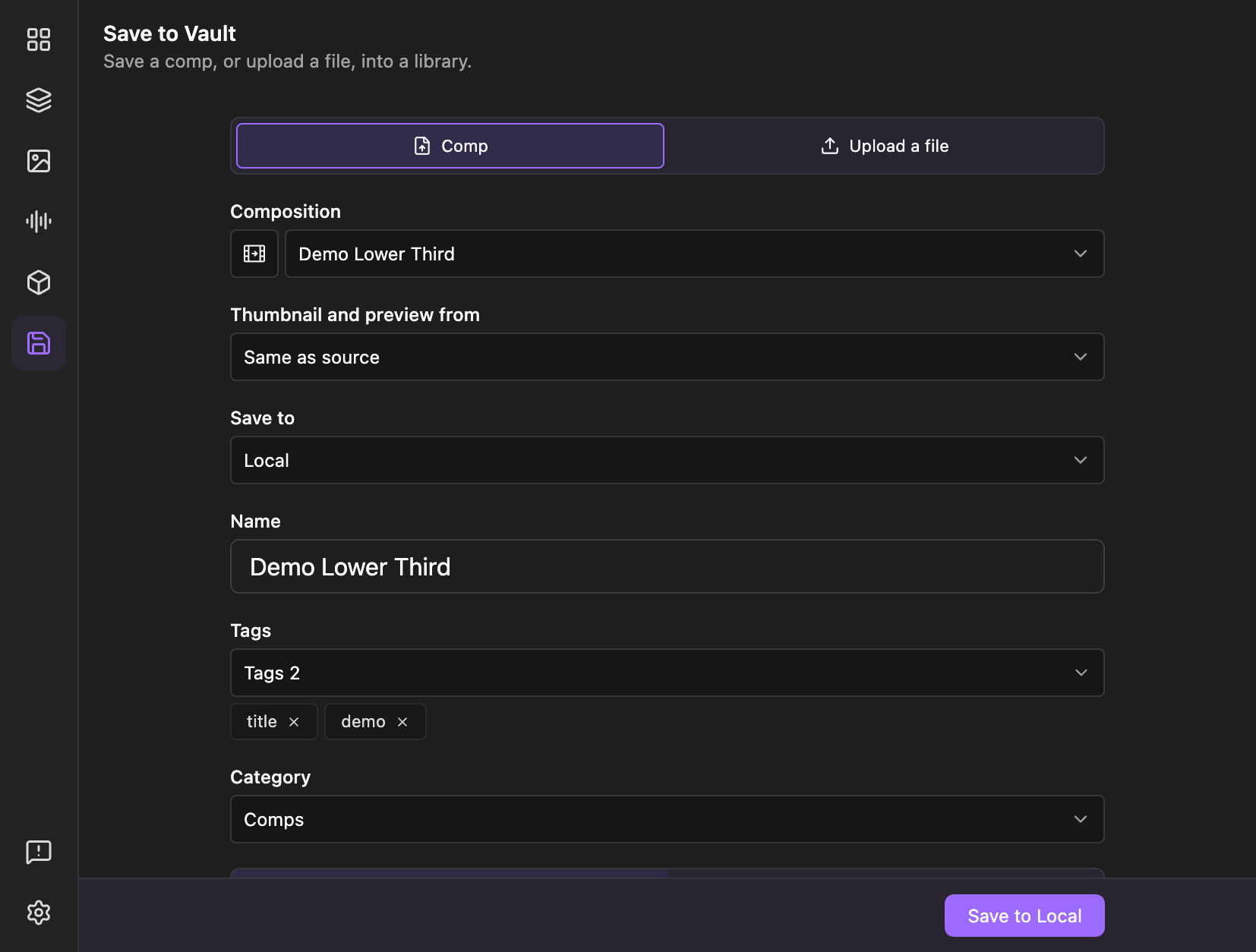
Click Save in the rail and keep Comp selected.
- Choose the comp
The active comp is picked for you. To use another, open Composition and pick it, or press the Use active comp button. The comp is fixed when the page opens, so changing comps in After Effects afterwards changes nothing here.
- Pick where it goes
Save to lists Local and every team you belong to. It remembers your last choice. A team where you only have view access shows a permission message and the Save button stays off.
- Name it, tag it, categorise it
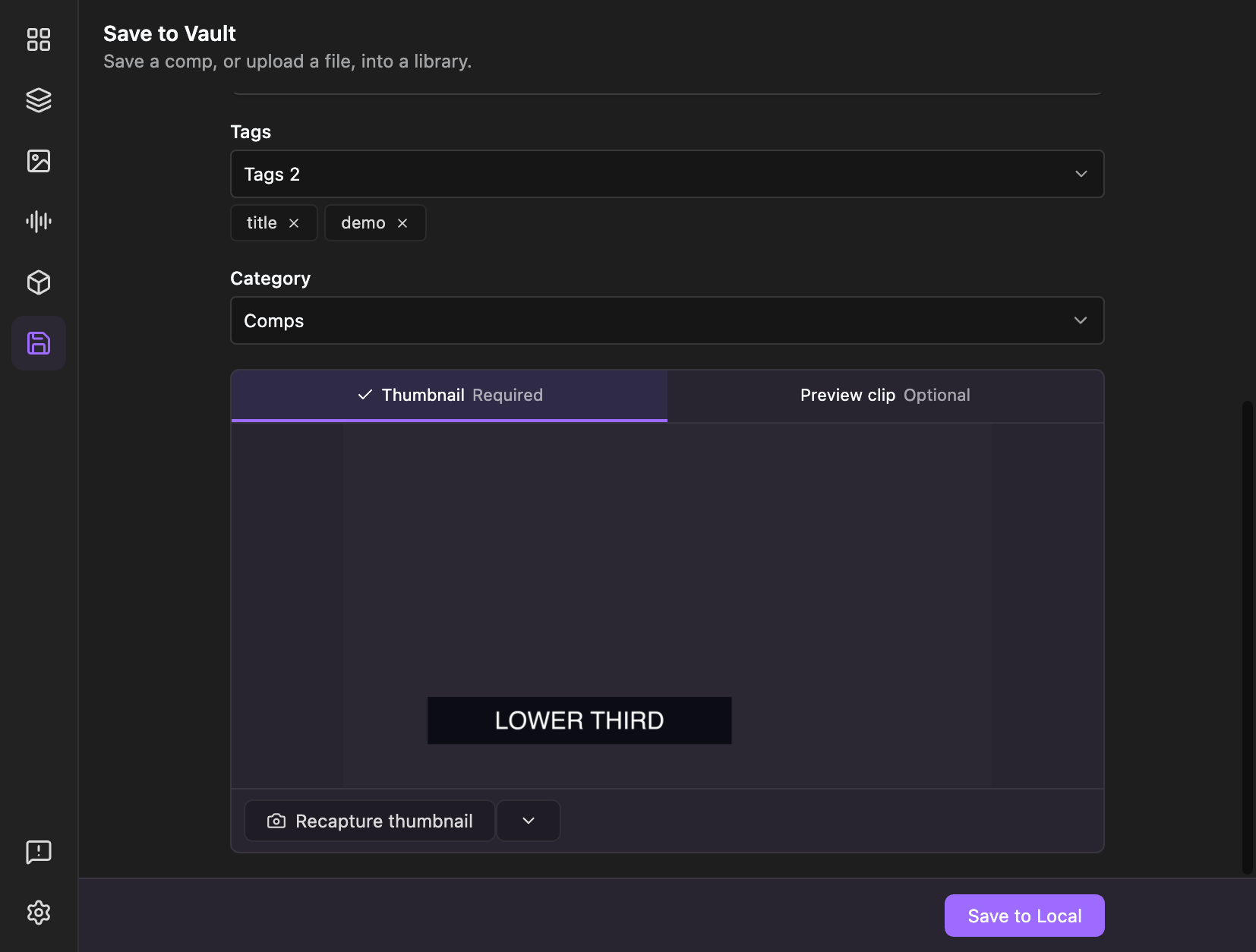
The name defaults to the comp name (up to 120 characters). Add tags (up to 20, 40 characters each) and choose a category: Comps, Images, Sound Effects or 3D. A category is required.
- Capture the thumbnail
The thumbnail is required. Altar grabs the playhead frame of the comp automatically. Recapture thumbnail takes it again, and Choose image uses a png, jpg or webp instead. Thumbnail and preview from lets a different comp supply the thumbnail and clip, for example a tidy poster comp.
- Optionally capture a preview clip
On the Preview clip tab, Capture preview clip renders the work area into a short silent clip that plays when you hover the card. It is optional. A work area longer than five seconds is sped up to fit a 2.5 second clip, and Altar warns you before it does. The clip needs the packaged Altar install; if it cannot be made, you save with a thumbnail only.
- Save
Click Save to Local (or the team’s name). A message confirms it. The asset appears in Browse the next time you open it.
What travels with it
For a comp, Altar saves one self-contained package:
- the comp and everything it depends on, as a reduced project
- every external footage file the comp uses, copied in and relinked
- the thumbnail, and the preview clip if you made one
- the fonts and effects the comp uses, and the After Effects version, recorded so Import can warn the next person (or you, on another machine)
Fonts and effect plug-ins themselves are not included, only their names. Solids and placeholders are kept as they are.
Save a file instead
Choose Upload a file to save a single file as it is: .aep, .ffx, video,
audio, image, SVG or 3D. Pick a thumbnail image, or for a still image it is filled
in for you. For video, audio and animated GIF Altar also records the length.
Everything accepted is on Supported asset types.
Local saves versus Team saves
- A Local save writes a folder into your Local Library. Saving the same name again creates a numbered copy, never an overwrite.
- A Team save uploads the package. It needs a signed-in account, shows progress, and can be cancelled. It is checked against the per-asset and team limits first.
You can also move a Local asset to a team afterwards. See Local and Team libraries.